LIVE
Live-call context
Live-call context
Incoming calls show caller, ticket, and last interaction before the agent answers.
A practical guide for agents, supervisors, and administrators using Agent Command Center, GoTo voice, SMS, callbacks, summaries, transcripts, and Customer 360 inside Zendesk Support.
This guide reflects the June 1, 2026 package supplied for crmscene.com.
Incoming calls show caller, ticket, and last interaction before the agent answers.
Post-call prompts stay visible until agents save the wrap-up or dismiss it intentionally.
Voice and Customer 360 share one darker, calmer workspace shell inside Zendesk.
CRM Scene GoTo Voice Workspace keeps voice activity attached to the Zendesk ticket. Agents can read one clear Agent Command Center, see caller context, place and answer calls, send SMS, schedule callbacks, sync summaries and transcripts, and complete sticky wrap-up without switching tools.
Start the shift, register the softphone, answer or place calls, read caller context, then save wrap-up and internal notes.
Use Voice and Customer 360 to see phone, ticket, Talk, GoTo, SMS, callback, summary, transcript, and timeline state together.
Use diagnostics for OAuth, SMS setup, Worker health, tenant readiness, queued writes, marketplace headers, and live QC checks.
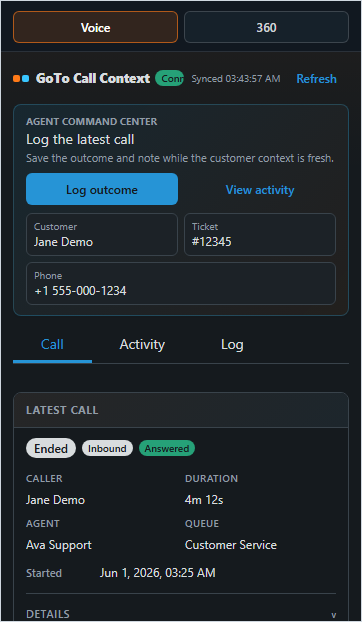
Register the softphone, answer or decline inbound calls, dial outbound, review recent activity, and open missed-call or wrap-up prompts.
Review latest-call context, activity, logging, callback actions, summary state, and ticket-specific voice history.
See customer readiness, recommended actions, SMS, callbacks, timeline, summary sync, and post-call wrap-up.
Agents need both Zendesk and GoTo readiness before live voice, SMS, callbacks, QA, sync, or admin actions should run.
Available for Talk.Zendesk Talk availability gates the app. When Talk is not available, the workspace blocks GoTo voice, SMS, callbacks, QA, sync, and admin actions until the agent becomes available for Talk.
Available for Talk.Softphone, click Register and allow microphone access if prompted.Voice for latest-call context and 360 for actions, timeline, SMS, callbacks, and wrap-up.Agent Command Center combines readiness, customer context, and the recommended action so agents know whether to answer, register, review, sync, or wrap up.
Shows whether the browser is ready, registering, reconnecting, answering, dialing, missed, or waiting for wrap-up.
Use it to review the latest call, inspect activity, add a callback, refresh live context, and log outcomes.
Shows customer, phone, ticket, Talk, GoTo, softphone, and SMS readiness with actions like Call, Text, Sync, Ticket, Cached, and Live.
Open Zendesk, set Talk to Available for Talk, open the GoTo top bar, register the softphone, and confirm the status is Ready.
Work from the customer ticket. Use Voice for latest-call context and match confidence, use 360 for customer actions and history, and keep the top bar available for call controls.
Use the sticky wrap-up prompt, review summary or transcript availability, sync notes, choose a disposition, mark callback need when relevant, and save the internal note.
The top-bar app is the main GoTo voice console for softphone registration, incoming calls, outbound calls, recent activity, missed-call review, and post-call wrap-up prompts.
Shows readiness, GoTo match status, line state, dialer, latest call, missed calls, and callback actions.
Shows recent GoTo events. Use Refresh when you need the newest activity or eligible activity synced back to Zendesk.
Click Register, allow microphone access, and confirm status changes to Ready. Use Reconnect after browser or session changes.
Incoming cards can show caller, extension, linked ticket, and last interaction before answer with actions like Answer, Decline, and Open ticket.
Use available GoTo controls such as Hang up, hold, resume, or transfer where supported by the tenant.
Use Wrap up this call to review the call, sync notes, pick a disposition, and save.
Live, Checking, Not receiving calls, and Ready tell agents whether the browser can receive GoTo activity.The ticket sidebar now presents Voice and 360 inside the same darker frame, so the product feels like one workspace instead of two unrelated panels.
Requester identity, GoTo match confidence, matched contact details, latest call state, recording or voicemail status, callback action, and summary preview.
Call history from GoTo events, related Zendesk GoTo tickets, and the active Zendesk ticket.
Save internal call outcomes such as resolved by phone, callback needed, left voicemail, no answer, wrong number, escalated, needs follow-up, or duplicate contact.
Possible or Conflict, verify the requester and GoTo contact before confirming ticket notes.Customer 360 combines customer identity, Talk and GoTo readiness, softphone and SMS status, recommended actions, activity timeline, missed-call follow-up, callbacks, and post-call wrap-up.
Agent Command Center can suggest adding a customer phone, following up a missed call, reviewing a summary, syncing notes, saving a call disposition, or sending a follow-up text.
Use Call, Text, Sync, Ticket, Cached, and Live actions from the 360 view.
Choose a template, edit the message, and send. Messages can be up to 1600 characters and are logged as private notes where supported.
Common template badges include Follow-up, Callback, and Resolved.
Set requested time, priority, and reason. Linked callbacks are written to the ticket; unlinked callbacks can create a task or ticket where configured.
Review summary and transcript state, sync notes, choose a disposition, mark callback need, and save the wrap-up to Zendesk.
Open Summary, Customer 360 > More tools Preview or Sync notes, or post-call wrap-up Review summary and Sync notes.Set Zendesk Talk to Available for Talk, then refresh the app.
Open the top bar and click Register or Reconnect.
Confirm softphone registration, microphone permission, and Talk availability.
Ask an admin to check workerBaseUrl.
Check workerAppKey or the Zendesk OAuth tenant key.
Review the visible reason: missing phone, SMS owner, scopes, blocked sender, or GoTo not authorized. Admins can use diagnostics SMS setup.
Check the requester phone, then use Live or refresh live activity.
The app may already be on that Zendesk ticket.
Use admin mode temporarily for setup verification, SMS setup, admin health, Worker checks, GoTo OAuth, replay, and Live QC.
Review workerBaseUrl, optional tenantId, secure workerAppKey, gotoSmsOwnerPhoneNumber, gotoSmsOwnerUserKey, and temporary ?debug=1.
Check Worker connection, tenant setup, app key validity, Zendesk OAuth, GoTo OAuth, note-writing readiness, SMS setup, admin health, KV state, marketplace headers, rate limits, queued writes, Worker version, polling, request ID, and Worker error.
Use Refresh, Replay, Live QC, Connect Zendesk, Connect GoTo, Switch GoTo, Save sender, and Send test.
Save the GoTo sender, optional user key, and send a setup test from diagnostics when SMS readiness is blocked.
Use npm run marketplace:check, npm run package:zendesk, npm run marketplace:check:submission, npm run marketplace:apply-worker-env, and npm run package:marketplace.
Watch Zendesk and GoTo rate counters plus queued, retrying, and failed Zendesk write counts.
The app may display or write customer phone numbers and emails, GoTo metadata, call outcomes, summaries, transcript previews, SMS bodies, private notes, callback details, and wrap-up data.
When a workspace issue needs support, collect the details that help CRM Scene or your Zendesk admin trace the exact request.
CRM Scene x GoTo support link or contact your Zendesk administrator.See the full CRM Scene app and workflow utility surface.
Back to apps →Plan the API, OAuth, retry, and observability model behind connected workflows.
Zendesk integration services →Use the client support path when an installed CRM Scene workspace needs help.
Client support →